Introducing Beckon: ask AI agents about your screen
Press ⌥⇧Space in any Mac app and Claude Code, Codex, Cursor Agent or ChatGPT answers with the page, PDF or project attached. macOS 26+, $39 once.
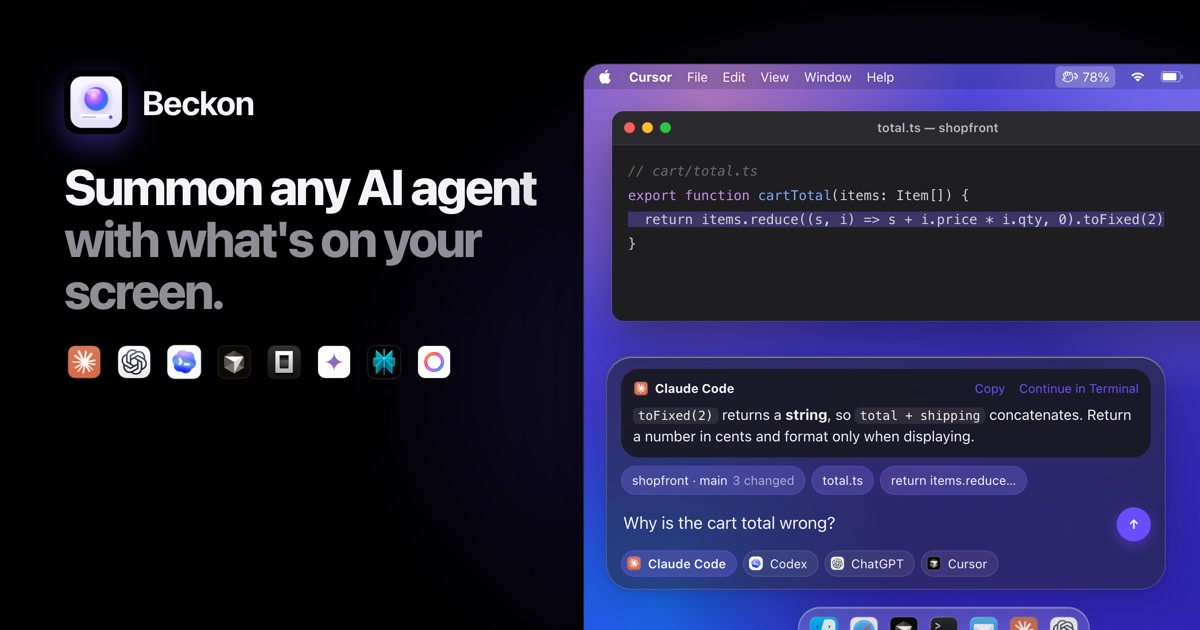
Beckon is a native macOS app that hands what you’re looking at to the AI agent of your choice. Press ⌥⇧Space in any app, and a bar rises from the bottom of the screen with the web page, PDF, code project, selection or terminal you’re in already attached. Type a question, pick an agent, and the answer appears right in the bar. Beckon costs $39 once, needs macOS 26 Tahoe or later, and is available now at beckon.macmuse.app.
One shortcut replaces copy, paste and explain
Beckon removes the step between your screen and an AI agent. Instead of pasting a URL, uploading a PDF or describing which file you mean, you press one shortcut and Beckon attaches the context itself. Each piece shows up as a chip in the bar, and you can leave any chip out before you send.
The bar rises without taking focus from the app you were using, works in full-screen apps, and Esc puts it away. You can change the shortcut in Settings.
A worked example: the wrong cart total
Say you’re in Cursor, looking at a cartTotal function in a project called shopfront, and the checkout shows a strange total. You press ⌥⇧Space: the bar already holds the project with its branch and changed files, the open file total.ts, and the line you selected. You type “Why is the cart total wrong?” and send it to Claude Code. In the demo on Beckon’s site, the answer in the bar points out that toFixed(2) returns a string, so adding shipping joins two strings instead of adding two numbers, and suggests keeping the total as a number in cents until it’s displayed.
What Beckon reads from each app
Beckon reads each app the way that app understands its own content:
| You’re in | Beckon attaches |
|---|---|
| A browser (Safari, Chrome, Arc, Brave, Edge and others) | The page URL, title and text, plus your selection |
| Firefox or Zen | The page title and text |
| A code editor (VS Code, Cursor, Zed, Xcode, JetBrains) | The open file, and the repo’s branch, changed files and recent commits |
| Terminal or iTerm2 | The working directory and recent output |
| Preview, Acrobat or Skim | The full text of the PDF |
| Finder | The front folder and the selected files |
| The selected message | |
| Anything else | A window screenshot read with on-device OCR, a region you drag with ⌘R, or the clipboard |
Password fields and password managers are never read. Context is captured only when you press the shortcut.
Which permissions does Beckon ask for, and why?
Beckon asks for three macOS permissions, each for a specific job:
- Accessibility, to read selected text and the open file, and to paste into chat apps.
- Automation (Apple Events), once per app it reads from, to ask browsers like Safari and Chrome for the page’s URL, title and text.
- Screen Recording, to read windows that have no text to copy, using on-device OCR. It’s used only when you press the shortcut.
Settings shows the live status of each permission, and every feature that doesn’t need a permission keeps working without it.
Which AI agents work with Beckon?
Beckon uses the agents and subscriptions you already have. Claude Code, Codex, OpenCode, Gemini CLI, Cursor Agent and Apple Intelligence answer right in the bar.
The Claude, ChatGPT and Cursor apps answer in the bar too. Beckon routes each through that company’s command-line agent on the same account: Claude Code for Claude, the Codex CLI bundled inside the ChatGPT app, and Cursor Agent for Cursor if it’s installed. Without Cursor Agent, Beckon opens the project in Cursor and pastes into its agent panel. Perplexity opens in its own app.
Any other command-line agent works through a custom command template, where {prompt} stands for what Beckon sends. Claude, ChatGPT, Perplexity and Gemini can also open on the web.
You can pick one agent per kind of app, let Apple Intelligence pick one as you type, or ⌘-click to ask two agents at once. When an answer should edit files, “Continue in Terminal” picks up the same conversation in your terminal, now with edit access.
Every agent’s usage, one click away
Click Beckon’s menu bar icon to see every agent’s usage in one popover: Codex’s 5-hour and weekly limits, Claude Code’s tokens and OpenCode’s cost, read from logs on your Mac, plus Claude’s limits and Cursor’s plan once you turn on Live plan limits. When a limit passes 75%, the number appears next to the menu bar icon, so you see it coming before an agent stops mid-task.
Codex, Claude Code and OpenCode usage is read from the log files those tools already keep on your Mac. Live plan limits for Claude and Cursor are an opt-in setting: Beckon asks Anthropic and Cursor directly, using the sign-in each tool already has.
What else is in the bar?
- Model picker: choose Opus, Sonnet or Haiku for Claude, any model on your Codex plan, or any of OpenCode’s providers, remembered per agent.
- Translate: ⌘T translates the answer or your selection on your Mac with Apple Translation, and the Paste button puts it back in place.
- Mask secrets: with this setting on, secrets such as API keys in any captured text are masked before they reach an agent, and screenshots are masked when they’re taken.
- MCP server: an optional, read-only
get_screen_contexttool lets your agents ask Beckon for what’s on screen, over the Model Context Protocol.
What does Beckon send over the network?
Beckon has no account and no analytics, for the reasons in why we build small Mac apps. By default, its only network request is a weekly license check. If you’re on a 7-day pass and click “Keep Beckon”, it sends your pass key to beckon.macmuse.app to get a checkout page for the rest. Two features that make network requests are off until you turn them on: live plan limits for Claude and Cursor, and a daily update check that fetches the latest version number from beckon.macmuse.app. Your question and its context go to the agent you picked, through that agent’s own app or command-line tool. The privacy page has the details.
What you need
- The agents you want to use, installed and signed in. Beckon uses your existing subscriptions; it doesn’t sell AI access.
- A Mac that supports Apple Intelligence for the on-device features. Everything else works without it.
- For Firefox and Zen, Beckon reads the page through Accessibility, or with OCR when that isn’t enough.
How much does Beckon cost?
Beckon is $39 once for one Mac, with every 1.x update included. Like Snug, it’s a one-time purchase from MacMuse. If you’d rather try it first, a 7-day pass costs $5.99, and keeping Beckon after that costs the remaining $33.01. Refunds are available within 14 days under the refund policy. It runs on Apple silicon and Intel Macs with macOS 26 Tahoe or later, and the download is about 4 MB.
See Beckon’s pricing and ask your next question without leaving the app you’re in.
Get new MacMuse apps first
A short email when a new app ships or an app gets a big update. That’s it.