Snug: an auto-tiling window manager for Mac
Snug tiles every new window the moment it opens, with layouts for ultrawide displays and scenes that return when you dock. macOS 15+, $14.99 once.
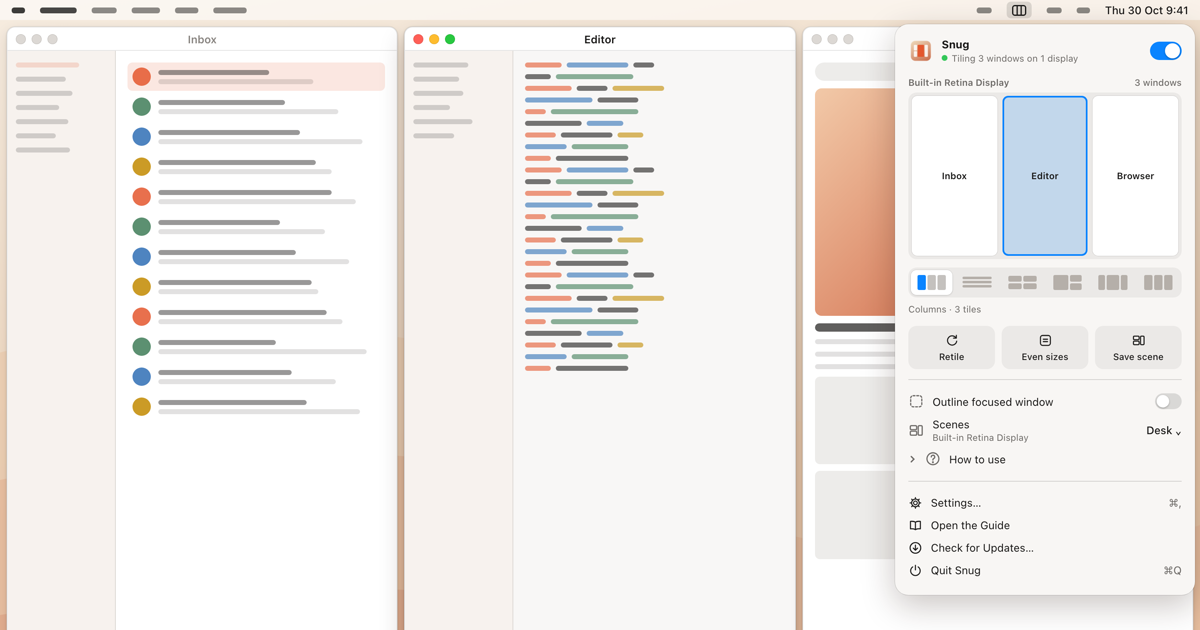
Snug is a small macOS menu bar app that tiles every window the moment it opens. You open an app, its window drops into the next free tile, and the windows already on screen make room. There is no config file to write and no shortcut to learn before it is useful. It costs $14.99 once for one Mac, runs on macOS 15 Sequoia or later, and is available now at snug.macmuse.app.
Snug places every new window for you
macOS lets you tile a window by dragging it to a screen edge or by using the Window menu, but each window still has to be placed by hand. Snug places them as they appear, so the dragging and resizing that comes with every new window goes away.
When a window closes, the rest reflow so no hole is left behind. When the screen is full, a big display adds another tile and a smaller one stacks the newcomer in the focused tile. Dialogs, sheets, panels and full-screen windows are never tiled.
Six layouts, one per display
Each display gets its own layout, chosen from its shape, and you can change it at any time. Snug ships six layouts:
| Layout | Best for |
|---|---|
| Columns | Laptops and standard displays, side-by-side work |
| Rows | Portrait displays |
| Grid | Many small windows at once |
| Side | One main window with helpers beside it |
| Center Stage | Ultrawide displays: the main window stays in the middle at a readable width |
| Thirds | Three equal columns on wide screens |
Press ⌃⌥Space to open the layout picker, then a number key, the arrow keys, or a click to switch. On a 34-inch or 49-inch ultrawide, Center Stage keeps your main window in the middle with columns on both sides, and a width cap stops any tile from stretching across the whole screen.
Can you still arrange windows with the mouse?
Yes. Snug is built to be used with the mouse as much as the keyboard:
- Swap: drag a window onto another window and they trade places. Hold Option to stack it there instead.
- Resize: drag the gap between two tiles and both neighbours resize. Pulling a window edge works too, and the windows next to it follow.
- Stacks: when more than one window shares a tile, a “+N” badge shows how many more are stacked there. Click it to pick the window you want.
- Focus: one shortcut lets the focused window fill its display. Press it again and everything returns to its tile.
The menu bar panel shows a live map of each display, with every tile at its real position and proportion. Click a tile in the map to bring that window forward.
Your desk layout comes back when you dock
Snug saves a scene for each display setup: which windows sat where, on which display. Plug in at your desk and the desk scene returns; unplug and the laptop scene comes back. A small notice says what was restored (“Restored Desk · 4 windows”) with an Undo button, so one click puts things back if you did not want it. You can also save named scenes from the menu bar panel and switch between them.
What does Snug read on your Mac?
Snug reads each window’s position, size, role and owning app through macOS Accessibility. It never reads what is inside a window, never takes screenshots and never asks for Screen Recording permission. Saved scenes store app identifiers and positions, not window titles or document names.
The app talks to the network for two things only: license activation and checks, and a once-a-day update check. There is no analytics, no telemetry and no crash reporting in the app. The privacy page lists exactly what is stored and sent, and why we build small, private Mac apps explains the thinking behind it.
Setting up Snug takes a minute
On first launch, Snug asks for Accessibility permission, because macOS only lets one app move another app’s windows through Accessibility. Grant it in System Settings, activate your license key, and tiling starts. Snug pauses while Stage Manager is on, and the menu bar panel says why; turn Stage Manager off and tiling resumes. The Snug guide covers layouts, scenes, rules for keeping an app out of tiling, and troubleshooting.
How fast is Snug?
On a MacBook Air (M4, 16 GB) running macOS 26, we measured these results on 30 October 2026 with a development build of Snug 1.0:
| Measurement | Result | Budget |
|---|---|---|
| New window placed in its tile (median of 8) | 78 ms | 250 ms or less (p95) |
| Memory with tiling on | 20 MB | 80 MB or less |
| CPU while idle | 0.0% | 0.1% of one core or less |
| Download size (1.0.0 disk image) | 2.5 MB | 10 MB or less |
The current 1.0.1 disk image is the same size. The performance page explains how each number was measured. Active-use CPU has not been measured yet, and the page says so.
Snug is notarized, not sold in the App Store
Mac App Store apps must run in the App Sandbox, which does not allow one app to move another app’s windows. Snug is signed with a Developer ID and notarized by Apple instead, and it updates itself with Sparkle, the open-source update framework many Mac apps use. Every release is listed in the changelog.
How much does Snug cost?
Snug is a one-time purchase: $14.99 for one Mac or $19.99 for two, with every 1.x update included. A license is needed for Snug to tile. If it isn’t right for you, the refund policy explains how to get your money back. Snug runs on Apple silicon and Intel Macs with macOS 15 Sequoia or later.
Moving to a new Mac takes two steps: choose “Deactivate this Mac” in Settings › License, then activate Snug on the new Mac with the same key.
Buy Snug ($14.99) and let your next window find its own place.
Get new MacMuse apps first
A short email when a new app ships or an app gets a big update. That’s it.