Best window manager for Mac in 2026: 9 options compared
The best window manager for Mac depends on one choice: snap windows yourself, or have them tiled for you. Nine options compared, free and paid.
The best window manager for Mac depends on one question: do you want to place windows yourself, or have them placed for you? If you want to snap windows with a drag or a shortcut, start with the tiling built into macOS 15 Sequoia, or the free Rectangle app. If you want every window tiled automatically, AeroSpace and yabai suit keyboard users who like config files, and Snug suits people who want auto-tiling with no config file.
We make Snug, so read our picks with that in mind. Every competitor fact below comes from the project’s own site, GitHub page or the Mac App Store, and each one is linked.
Snapping or auto-tiling: which kind of window manager do you need?
Every Mac window manager falls into one of two groups.
Snapping apps move a window when you ask. You drag it to a screen edge or press a shortcut, and it fills a half, a third or a corner. Every other window stays where it was. macOS’s own tiling, Rectangle, Magnet, Moom and Loop work this way.
Auto-tiling managers place windows for you. Open a new window and it gets a slot. The other windows shrink or move to make room, and they fill the gap when one closes. AeroSpace, yabai, Amethyst and Snug work this way.
Snapping is easier to learn and never surprises you. Auto-tiling saves more time once you have many windows open, but it changes how your desktop behaves. Try the built-in tiling first. If you find yourself snapping the same windows every morning, that is the sign an auto-tiler will help.
Mac window managers compared
Prices and features checked on November 10, 2026.
| App | Price | Type | Setup | Needs SIP disabled? | Best for |
|---|---|---|---|---|---|
| macOS tiling | Included (macOS 15+) | Snapping | System Settings | No | Occasional halves and quarters |
| Rectangle | Free, open source | Snapping | Settings window | No | Free keyboard snapping |
| Rectangle Pro | $9.99, 10-day free trial | Snapping | Settings window | No | Custom snap areas, app layouts |
| Magnet | $4.99, Mac App Store | Snapping | Settings window | No | Drag-to-snap, bought through the App Store |
| Moom | $15 one-time, free trial | Snapping | Settings window | No | Saved layouts you trigger by hand |
| Loop | Free, open source | Snapping | Settings window | No | Radial menu with the mouse |
| AeroSpace | Free, open source (beta) | Auto-tiling | TOML config file | No | i3 users, keyboard-only work |
| yabai | Free, open source | Auto-tiling | Config file + CLI | Only for some features | Power users who script everything |
| Amethyst | Free, open source | Auto-tiling | Settings window or YAML | No | Free auto-tiling with a settings window |
| Snug | $14.99 one-time (1 Mac) | Auto-tiling | Settings window | No | Auto-tiling with no config, docking scenes |
macOS only lets one app move another app’s windows through Accessibility, so expect an Accessibility permission prompt from third-party window managers. Rectangle, Magnet, Moom, yabai, Amethyst and Snug all document this step. “SIP” is System Integrity Protection, a macOS security feature. Only yabai has features that need it partly turned off.
What does macOS’s built-in window tiling do?
Since macOS 15 Sequoia, you can snap windows without installing anything. According to Apple’s “Tile windows on Mac” guide, you can:
- Drag a window to the left or right edge, or a corner, and release it when the outline appears.
- Drag a window to the menu bar to fill the desktop.
- Hover over the green button for tile layouts, or use Window > Move & Resize.
- Press Fn-Control-Left Arrow or Right Arrow to snap the window to a half (full shortcut list).
It costs nothing and needs no permissions. Its limits: there are no thirds, the corner positions have no keyboard shortcut, and nothing happens on its own when a new window opens. Our guide on how to snap windows on Mac walks through every built-in method and the settings that control them.
Pick it if you only tile a few windows a day.
Which snapping app is best for Mac?
Rectangle and Rectangle Pro
Rectangle is free and open source (GitHub). It moves and resizes windows with keyboard shortcuts or by dragging to snap areas on the screen edges and corners. Pressing a shortcut again cycles through sizes. It supports macOS 14 and later, with older versions kept for older systems. Its README says plainly that it “does not rearrange windows automatically.”
Rectangle Pro is $9.99 after a 10-day free trial, and one license runs on 3 Macs at a time. It adds custom snap areas, custom sizes, a one-key “window throw” to 16 positions, and app layouts that can run when you connect or disconnect a display.
Pick Rectangle if you want free snapping with more shortcuts than macOS has. For most people who just want snapping, it is the best free choice. Pick Rectangle Pro if you want snapping plus saved app layouts tied to your displays, and don’t want windows to move on their own.
Magnet
Magnet is $4.99 on the Mac App Store with no in-app purchases, and it needs macOS 13 or later. You can drag, use shortcuts or the menu bar. Corners give quarters, side edges give halves, and the bottom edge gives thirds. It supports up to six external displays.
Moom
Moom 4.6 is $15 once, with a free trial. It adds a pop-up palette, snap zones, keyboard control and saved layouts. Moom’s own site pitches saved layouts for a laptop that connects to an external display now and then, though you activate the layout yourself.
Loop
Loop is free and open source (GPL-3.0). You hold a trigger key and move the pointer in a direction, and a radial menu moves and resizes the window. Install it with brew install loop or from its releases page.
Rectangle vs Magnet: which should you pick?
Both are snapping apps. Rectangle is free and open source and needs macOS 14 or later. Magnet costs $4.99, comes from the Mac App Store and runs on macOS 13. Rectangle gives you more shortcuts and size cycling. Magnet’s bottom-edge thirds are easy to use with a mouse.
If you’re on macOS 14 or later, try Rectangle first. It’s free, so you lose nothing. Choose Magnet if you prefer buying through the App Store.
What is the best tiling window manager for Mac?
AeroSpace
The AeroSpace window manager is “an i3-like tiling window manager for macOS.” It’s free under the MIT license and installs with Homebrew. You configure it in a plain-text TOML file (~/.aerospace.toml), and it does not require disabling SIP. New windows join the tiling tree by default, according to the AeroSpace guide. It replaces macOS Spaces with its own workspaces. It is still a public beta, and the project warns to expect breaking changes until 1.0.
Pick AeroSpace if you used i3 on Linux, want to keep your setup in dotfiles, and plan to use the keyboard for everything.
yabai
yabai tiles windows automatically with binary space partitioning and is controlled from the command line. It is MIT licensed. You pair it with a hotkey tool (the author makes skhd, but any will do). Core tiling works without changes to SIP. Moving and creating Spaces, window transparency, animations and a few other features need SIP partly disabled.
Pick yabai if you want the most control and are comfortable editing shell configs and changing SIP.
Amethyst
Amethyst is a free auto-tiler modeled on xmonad. It ships many layouts (Tall, Wide, Column, Row, BSP, Fullscreen and more). You can set it up in its preferences window or a YAML file in your home folder. It runs on macOS 10.15 or later.
Pick Amethyst if you want free auto-tiling and prefer a settings window to a config file.
Snug
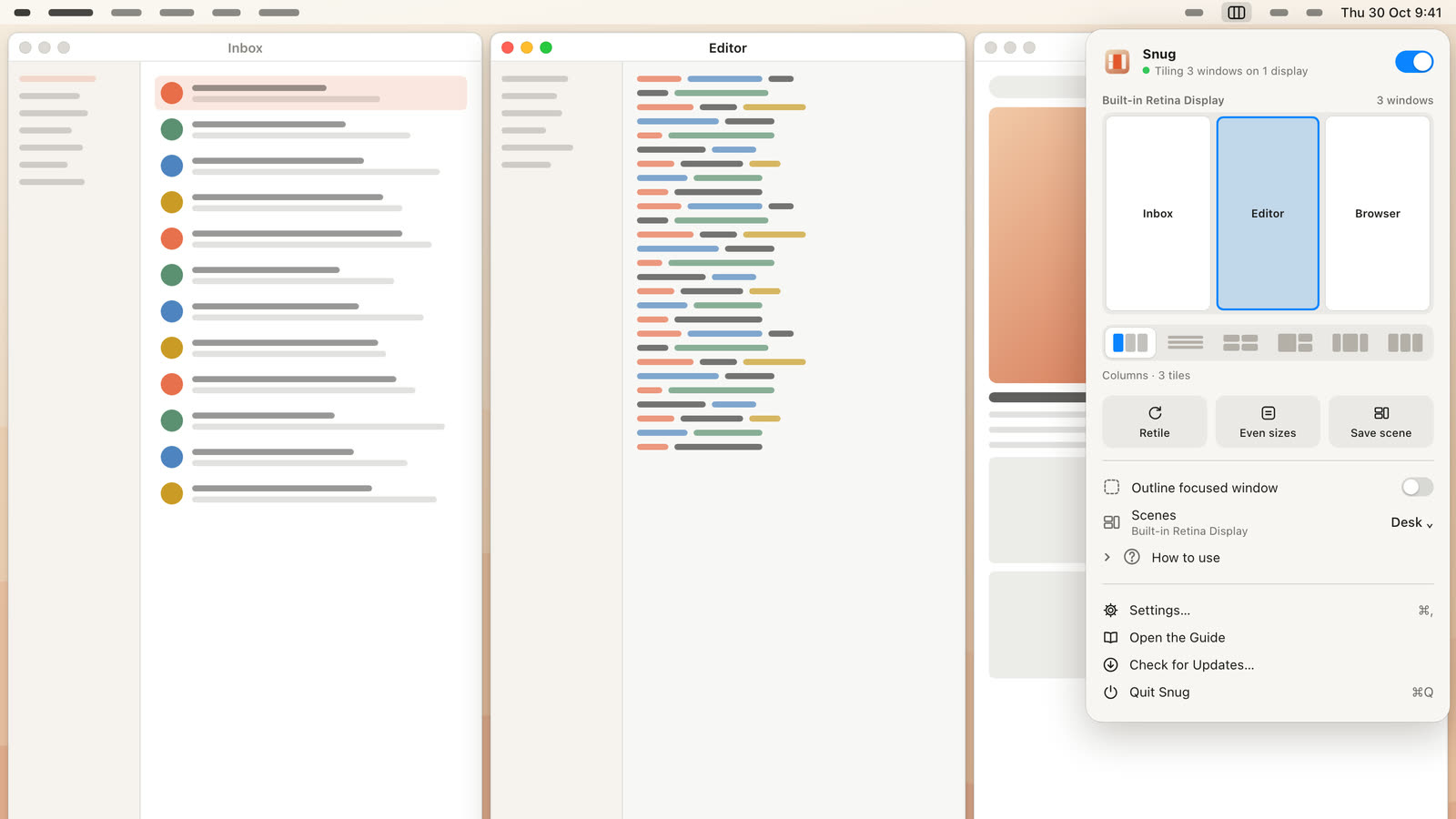
Snug is our auto-tiling window manager. It tiles each new window the moment it opens (78 ms to place a new window, measured on its performance page), and the rest reflow when one closes. There is no config file. You set it up in a settings window.
What sets it apart:
- Layouts per display: columns, rows, grid, side, thirds, and Center Stage, which keeps the main window centered on an ultrawide with columns on each side. A width cap stops tiles from stretching across wide screens.
- Docking scenes: Snug remembers the arrangement for each display setup and restores it when you plug in or unplug.
- Chains: windows sit in one straight line that runs off the screen edge, and ⌃⌥ + arrow slides along it. Snug 1.1 added Chains.
- Mouse control: drag to swap, Option-drag to stack, drag gaps to resize.
- Privacy: it reads window position, size and owning app only. No screenshots and no Screen Recording permission.
Where it falls short: it costs $14.99 for one Mac ($19.99 for two), where AeroSpace, yabai and Amethyst are free. It needs macOS 15 or later. And it has none of the scripting depth of yabai or the dotfile setup of AeroSpace. The Snug launch post covers the details.
Pick Snug if you want every window tiled without writing a config file, or you dock a laptop to different displays and want your layout back each time.
So which is the best window manager for Mac?
- You want free snapping: use macOS’s built-in tiling. Add Rectangle when you want more shortcuts.
- You want snapping from the App Store: Magnet.
- You want saved layouts you trigger yourself: Moom or Rectangle Pro.
- You want keyboard-first auto-tiling and like config files: AeroSpace. Choose yabai if you want even more control.
- You want free auto-tiling with a settings window: Amethyst.
- You want auto-tiling with no config, ultrawide layouts and scenes that return when you dock: Snug.
FAQ
Does macOS have a built-in window manager?
Yes. macOS 15 Sequoia and later can snap windows to halves, quarters and the full desktop by dragging, from the green button, from the Window menu, or with Fn-Control shortcuts. It does not tile new windows automatically.
What is the best free window manager for Mac?
For snapping, Rectangle. For auto-tiling, AeroSpace if you’re fine with a config file, or Amethyst if you’d rather use a settings window.
Do Mac window managers need SIP disabled?
Most don’t. AeroSpace states it doesn’t require disabling SIP. yabai’s core tiling works without it, but some features, such as moving Spaces and window animations, need SIP partly disabled.
What is the best window manager for an ultrawide monitor?
You want a layout that stops windows from stretching edge to edge. Snug’s Center Stage layout keeps the main window in the middle with columns on both sides, and its width cap limits tile width. Among snapping apps, Magnet’s thirds also help on wide screens.
Is Snug a subscription?
No. Snug is $14.99 once for one Mac, or $19.99 for two, with no account.
Try auto-tiling on your Mac
If you have read this far and still place the same windows by hand every day, auto-tiling is worth a try. See layouts, docking scenes and pricing on the Snug website.
Get new MacMuse apps first
A short email when a new app ships or an app gets a big update. That’s it.