How to find a file on Mac: Spotlight, Finder and fixes
How to find a file on Mac with Spotlight, Finder search operators, Recents and Terminal, plus fixes for when Mac search is not working.
To find a file on Mac, use Spotlight: press ⌘Space, type part of the file’s name or a word inside it, and press Return to open the top result. If that doesn’t work, open a Finder window, press ⌘F and narrow the search with keywords like kind:pdf, or press ⇧⌘F to see the files you opened or changed recently.
This guide covers each built-in way to find files on Mac, what to do when Spotlight isn’t finding files, and the apps worth trying if you search all day. Steps were checked against Apple’s Mac User Guide for macOS 27. Older versions may label a few things differently.
How to find a file on Mac with Spotlight
- Press ⌘Space and start typing. The best match appears at the top.
- Use the arrow keys to move through the results. Press the Space bar to preview a file with Quick Look.
- Press Return or double-click to open it.
- To see where a file lives in Finder, select the result and hold ⌘.
(Apple: Find what you need with Spotlight)
Narrow Spotlight to files only
On current macOS, Spotlight has browse modes. Press ⌘2 (or click Files) to search only the files on your Mac. A few more ways to cut the noise:
- Filter by type: type
/and a type, such as/PDF, then press Return to see only PDFs. - Filter by place: type a location such as
iCloud Drive, press Tab, then type the file name. - Use keywords:
kind:images beach,author:Johnortitle:budget. Spotlight also understandsfrom,to,with,by,tag,name,keywordandcontains.
(Apple: Narrow your search results in Spotlight)
How do I search for files in Finder?
Finder search is better when you want a list you can sort, or a search you can save.
- Open a Finder window and press ⌘F.
- Type a word from the file’s name or contents and press Return.
- Click the Add button below the search field to add criteria. Choose Kind in the far-left menu, then Document, Image or another type. Choose Other to see every attribute.
- Switch to List view and click a column heading to sort by name, date or size.
(Apple: Narrow your search results in Finder)
Finder search operators that save time
You can type these straight into the search field. All examples come from Apple’s guide:
| Type this | To find |
|---|---|
trip kind:document | Documents that contain “trip” |
kind:images created:8/16/24 | Images created on that date |
modified:<=7/29/24 | Items modified on or before that date |
date:6/29/24-7/25/24 | Items in a date range |
author:tom OR author:thom | Either spelling of the author |
trip -france | “trip,” but not “france” |
Other kind: values include pdf, folder, presentation, application and font.
To keep a search, click Save below the search field. Finder saves it as a Smart Folder that stays up to date, and you can add it to the sidebar. (Apple: Create a Smart Folder)
How do I find a file I just had open?
Press ⇧⌘F in Finder to open Recents. Apple describes it as all of the files you viewed or changed recently. (Apple: Mac keyboard shortcuts)
For a download, press ⌥⌘L in Finder to open the Downloads folder, switch to List view and click a date column heading to put the newest files first.
How do I see where a downloaded file came from?
macOS often records where a download came from. Select the file, press ⌘I (File > Get Info) and look for Where from under More Info. Not every file has it, so it may be missing. (Apple: Get file information)
How do I find a file with Terminal? (advanced)
mdfind searches the same index Spotlight uses, straight from Terminal. It only reads, so it’s safe to experiment with. A few examples:
mdfind -name invoice                    # file names containing "invoice"
mdfind -onlyin ~/Documents "budget"     # anything matching "budget" in Documents
mdfind -count -onlyin ~/Downloads pdf   # how many matches, not the list
To see the “Where from” record for one file:
mdls -name kMDItemWhereFroms ~/Downloads/file.pdfRun man mdfind for the full list of options. Because mdfind uses the Spotlight index, it has the same blind spots as Spotlight. To search the disk directly, the built-in find command works without the index, for example find ~ -iname "*invoice*" 2>/dev/null. It’s slower.
Why is Spotlight not finding my files?
When Mac search is not working, it’s usually one of five things. Work down the list.
1. You searched in the wrong place
A search you start in a Finder window returns files and folders on the internal disk. A search in Spotlight can also include mail, calendar events and other app content. Try the other one. (Apple: If searching your Mac returns unexpected results)
2. The category is turned off
Open System Settings and click Spotlight in the sidebar. Under Search results, make sure the categories you’re searching for are turned on.
3. The folder is excluded from Spotlight
- Open System Settings > Spotlight.
- Click Search Privacy.
- If the folder or disk you’re searching is in the list, select it and click the Remove button.
Spotlight will index it again. (Apple: Prevent Spotlight searches in files)
4. The index is damaged or out of date
You can rebuild the Spotlight index for a disk or folder by excluding it, then including it again. Apple’s current steps:
- Choose Apple menu > System Settings, then click Spotlight in the sidebar. (On some versions it’s Siri & Spotlight.)
- Click Search Privacy (or Spotlight Privacy).
- Click the Add button (+) and add the disk or folder you want to reindex.
- Wait a few seconds, select it, and click the Remove button (−).
- Click Done and quit System Settings. Spotlight reindexes that location.
If you see an “unknown” or permissions error when adding a disk, your account may not own some items on it. (Apple: About Spotlight indexing and search results)
Reindexing a large disk runs in the background and can take a while. To check whether indexing is turned on for a volume, run mdutil -s / in Terminal.
5. Spotlight doesn’t look there
Spotlight usually skips some places, like the System and Library folders and the inside of app bundles, according to the developer of Find Any File. For those, use find in Terminal or an app like Find Any File (below).
What’s the best Spotlight alternative for Mac?
Spotlight and Finder are enough for most people. These apps help if you search a lot, or Spotlight keeps missing things. Each was checked on its vendor’s site.
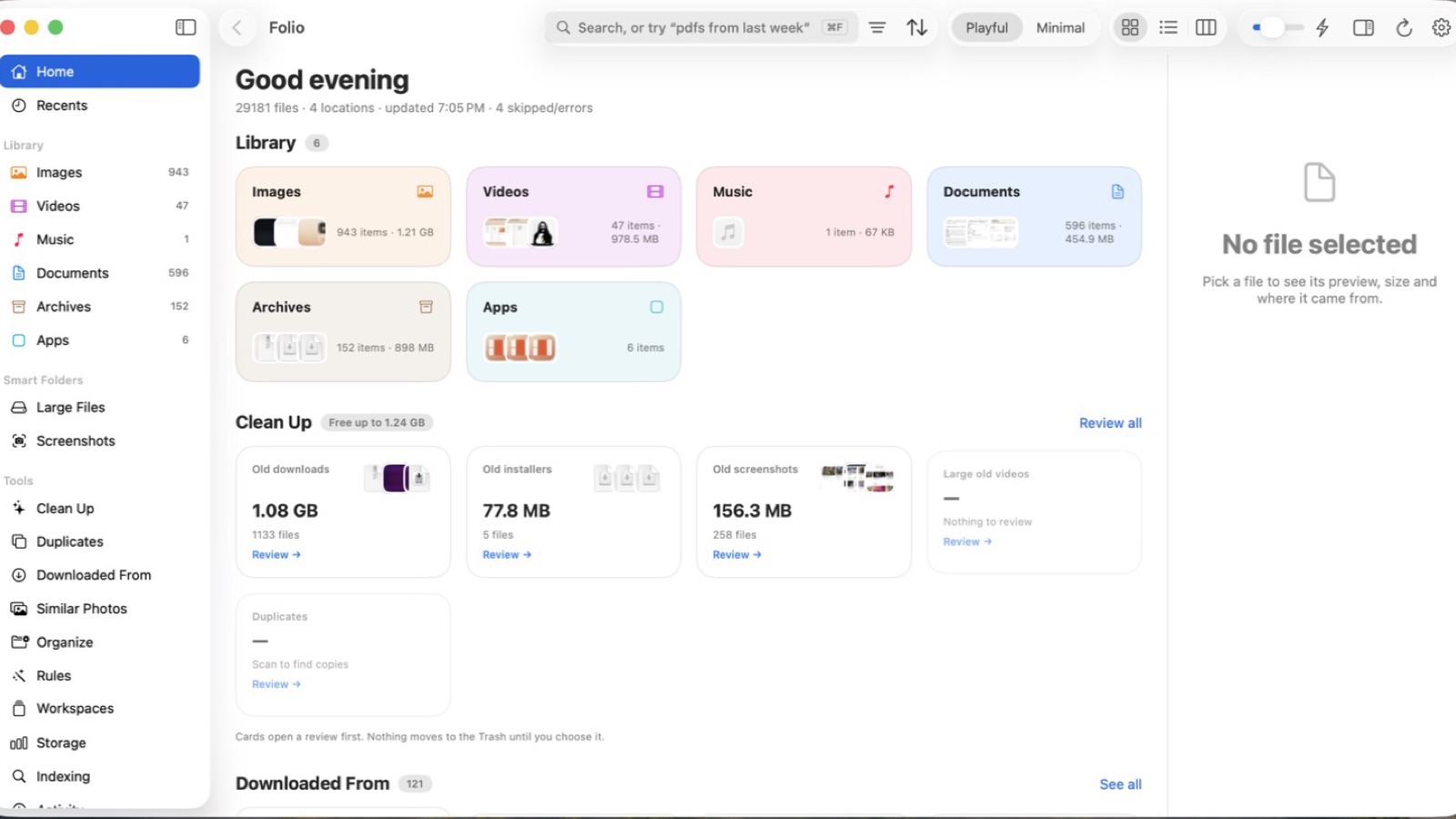
Folio is our app, so read this with that in mind. It’s a private file finder for Mac that searches your files in plain English. Type “pdfs from last week” or “screenshots over 5 MB” and it understands the type, date and size. It reads inside PDFs, sorts your library by kind (images, videos, music, documents, archives and apps), and shows every folder in one window with a clickable path bar. Its Downloaded From view groups downloads by source, like Gmail, ChatGPT, Slack, Google Drive and GitHub, using the same “Where from” info macOS saves. Press ⇧⌘Space in any app for a quick search panel with just your files. Folio indexes and searches on your Mac, with no account and no analytics. It needs macOS 14 Sonoma or later and costs $9.99 once for one Mac. (Folio)
HoudahSpot builds on Spotlight and gives you more control over the search: text search for words, prefixes or exact phrases, and a text preview that highlights the matches. It’s a one-time purchase with a free trial, and it needs macOS 10.14 or later with Spotlight indexing turned on. Pick it if you want Spotlight’s index with far more control. (HoudahSpot)
Find Any File costs $6 and finds what Spotlight misses: files on network and external drives, items inside app bundles, and System and Library folders. In “root mode,” after an admin password, it can search other users’ folders on local disks. It supports macOS 10.11 through 27, and you can try it free from the developer’s site. Pick it when Spotlight simply can’t see the file. (Find Any File)
Raycast is a free launcher with a File Search feature, Quick Look previews, and actions like copying a file’s path or opening it in Finder. Pro costs $10 a month or $96 a year and adds AI features. It requires macOS Tahoe and Apple silicon. (Raycast File Search, pricing)
Alfred is a launcher whose free version includes file search. The paid Powerpack adds more features and costs £34 for a single license or £59 with free lifetime upgrades. It needs macOS 10.14 or later. (Alfred, Powerpack)
| App | Price | Best for | macOS |
|---|---|---|---|
| Spotlight + Finder | Free | Most everyday searches | Built in |
| Folio | $9.99 once (1 Mac) | Plain-English search, downloads by source, cleanup | 14+ |
| HoudahSpot | One-time purchase; free trial | Detailed searches on the Spotlight index | 10.14+ |
| Find Any File | $6 | Files Spotlight can’t see | 10.11–27 |
| Raycast | Free; Pro $10/month or $96/year | A launcher that also finds files | Tahoe, Apple silicon |
| Alfred | Free; Powerpack £34 or £59 | A launcher that also finds files | 10.14+ |
Prices and features checked on November 10, 2026.
If Spotlight is missing files because of the index, fix the index first (above). An app that reads the Spotlight index, like HoudahSpot, will miss the same files until you do. Find Any File and find are the tools that look past it.
FAQ
What is the shortcut to search for a file on Mac?
⌘Space opens Spotlight from anywhere. In Finder, ⌘F starts a search in the current window and ⇧⌘F opens Recents. In Folio, ⇧⌘Space opens a quick search panel for your files.
Why can’t Spotlight find a file I know is on my Mac?
The most common causes are a folder in Spotlight’s Search Privacy list, a search results category that’s turned off, or a damaged index. Remove the folder from Search Privacy, or rebuild the index by adding the disk to Search Privacy and removing it again.
Can I search inside files on a Mac?
Yes. Spotlight and Finder search the text inside many documents, and you can use kind: to limit results, like invoice kind:pdf. Folio also reads inside PDFs.
How do I find files by date on a Mac?
In the Finder search field, type modified:<=7/29/24 or date:6/29/24-7/25/24, or click Add and choose a date attribute. In Folio, type something like “pdfs from last week.”
What is the best free Spotlight alternative?
For finding files Spotlight can’t see, Find Any File is $6 and free to try. Raycast and Alfred are free launchers with file search. If Spotlight works but feels cluttered, try its Files mode (⌘2) before installing anything.
Next step
Start with Spotlight’s Files mode and the Finder operators above. If you want to type “pdfs from last week” and see them, or find a file by where you downloaded it, try the live demo on folio.macmuse.app. It runs in your browser with a sample library, no download needed. Folio, the private file finder for Mac, is $9.99 once. Read the story behind it in Introducing Folio, and if your disk is full of copies, see how to find duplicate files on Mac.
Get new MacMuse apps first
A short email when a new app ships or an app gets a big update. That’s it.