Duplicate file finder for Mac: free methods and 5 apps
Find duplicate files on Mac for free with Finder, Photos and Terminal, then compare five duplicate file finder apps for Mac, with checked prices.
To find duplicate files on a Mac for free, use Finder to search one kind of file at a time and sort the results by name and size, use the Duplicates album in Photos for your photo library, or compare checksums in Terminal. If you want a duplicate file finder for Mac that does the comparing for you, dupeGuru is free, and paid apps like Gemini 2, Duplicate File Finder by Nektony, CleanMyMac and Folio add a review screen and send files to the Trash.
How do I find duplicate files on my Mac for free?
macOS has no single “find duplicates” button for all your files. It does have three free tools that get you most of the way.
Use Finder search and sort by name and size
Duplicates usually share a name pattern (“report.pdf”, “report 2.pdf”, “report copy.pdf”) and an identical size. Finder can show you both.
- Open a Finder window and press ⌘F. This starts a search in the Finder window.
- Click the Add button below the search field. In the far-left pop-up menu choose Kind, then pick a type such as Document or Image in the next menu. (Apple: Narrow your search results in Finder)
- Switch to List view, then click the Name column heading to sort. Files called “copy” or “2” now sit next to the original.
- Click the Size column heading to sort by size instead. Two files with the same size and a similar name are likely duplicates. Click a heading again to reverse the order. (Apple: Sort and arrange items in the Finder)
- Press the Space bar on a file to preview it with Quick Look before you decide anything.
You can also type a search such as copy kind:pdf straight into the search field. Apple documents kind: keywords like kind:images, kind:pdf and kind:presentation.
To reuse a search, click Save below the search field. Finder saves it as a Smart Folder that updates on its own, and you can add it to the sidebar. (Apple: Create or change a Smart Folder)
The limit: same name and size is a strong hint, not proof. Finder doesn’t compare the contents, and it won’t catch a duplicate that was renamed.
Use the Duplicates album in Photos
If your duplicates are photos and videos inside the Photos app, don’t hunt for them in Finder. Photos has a built-in Duplicates collection. Apple’s guide shows it from macOS Ventura 13 through the current macOS 27.
- Open Photos.
- Click Duplicates under Utilities in the sidebar. If you don’t see it, hover over Utilities and click the arrow. Large libraries can take a while to analyze.
- If you use iCloud Shared Photo Library, choose Both Libraries from the Library pop-up menu in the toolbar.
- Select one row, several rows, or press ⌘A for all.
- Click the Merge button, then confirm.
One original stays where the duplicates were. The other copies go to Recently Deleted, where you can recover them for 30 days. (Apple: Remove duplicates in Photos on Mac)
This is the right tool for anything inside your Photos library. Don’t delete files from inside the library package in Finder, and don’t point a third-party duplicate finder at it unless the app says it supports Photos libraries.
Use Terminal to compare checksums (advanced)
A checksum is a fingerprint of a file’s contents. Two files with the same SHA-256 checksum are, for practical purposes, identical, whatever their names. macOS includes shasum, so you can list exact duplicates in one folder:
find ~/Downloads -type f -exec shasum -a 256 {} + | sort | awk '{ if ($1 in first) { if (!shown[$1]++) print first[$1]; print } else first[$1]=$0 }'Replace ~/Downloads with the folder you want to check. The command prints each group of identical files together, with the same checksum at the start of each line. It handles names with spaces. On a big folder it takes a while, because it reads every file in full.
Warning: this command only lists files. It deletes nothing, and you should keep it that way. Don’t pipe its output into rm. A deleted file in Terminal skips the Trash and is gone. Read the list, then move the copies you don’t want to the Trash yourself in Finder (⌘Delete).
What is the best duplicate file finder for Mac?
If you want an app to do the comparing, these are the five worth knowing. Each one was checked on its vendor’s site.
dupeGuru is free and open source under the GPL-3.0 license. It scans by file contents, by file name with fuzzy matching, or by picture similarity, and it has a Music mode that reads tags. You can mark a folder as a Reference folder so nothing in it is ever deleted, and it can send files to the Trash. The catch: the latest release, 4.3.1, is from 2022, and the project is asking for help with macOS maintenance. (dupeGuru site, GitHub, FAQ)
Gemini 2 by MacPaw finds exact duplicates and files that look similar, including similar photos. Duplicates go to the Trash, where you can restore them. It needs macOS 10.10 or later and is a subscription listed from $1.95 a month. (MacPaw: Gemini 2)
Duplicate File Finder by Nektony has a free version that finds and removes duplicates. Pro adds more options and costs $14.95 a year or $34.95 once for one Mac. It compares files byte for byte, finds similar photos and music, can merge folders, and lets you restore removed files from the Trash. It supports macOS 11 to 27. (Nektony: Duplicate File Finder, pricing)
CleanMyMac by MacPaw is a full cleanup suite. Duplicate finding is one feature among many, and it also detects similar images. It needs macOS 11 or later, has a 7-day free trial, and is listed from $3.33 a month. (CleanMyMac)
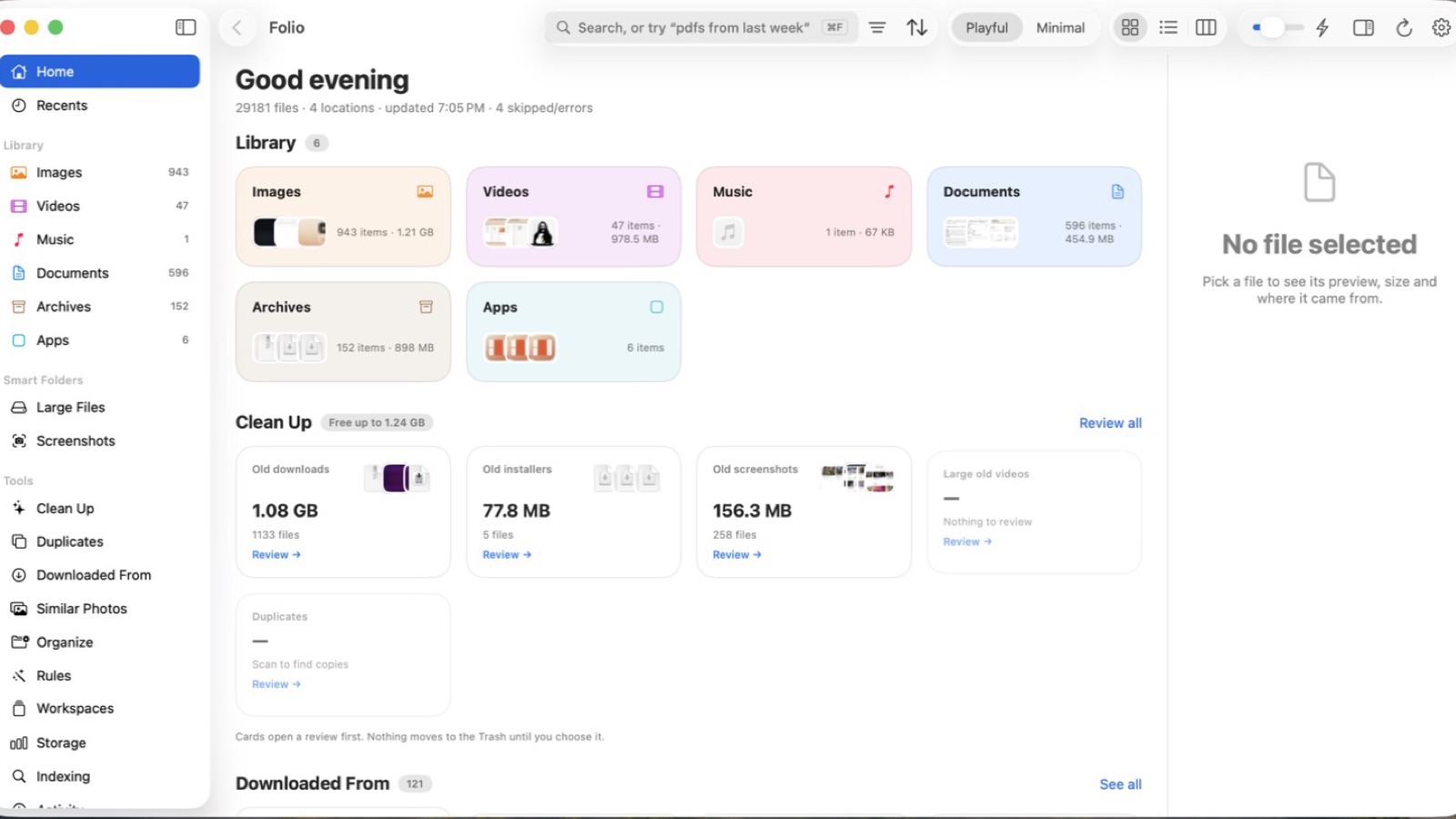
Folio is our app, so weigh this paragraph accordingly. It’s a private file finder for Mac, and duplicates are one part of its Clean Up screen. Clean Up totals exact duplicates along with old downloads, forgotten installers and stale screenshots. You choose what goes, it goes to the Trash first, and Folio never deletes anything on its own. It does not find similar photos, only exact duplicates. Folio runs on macOS 14 Sonoma or later and costs $9.99 once for one Mac. (Folio)
Duplicate file finder comparison
| App | Price | Finds | Where removed files go | macOS |
|---|---|---|---|---|
| Finder + Photos (built in) | Free | Likely duplicates by name and size; Photos duplicates | Trash; Photos’ Recently Deleted | Photos Duplicates: Ventura 13+ |
| dupeGuru | Free, open source | Exact, similar names, similar pictures, music | Trash (optional direct delete) | 10.12+ |
| Gemini 2 | Subscription, from $1.95/month | Exact and similar files, similar photos | Trash | 10.10+ |
| Duplicate File Finder (Nektony) | Free; Pro $14.95/year or $34.95 once | Exact, similar photos and music | Trash | 11–27 |
| CleanMyMac | From $3.33/month; 7-day trial | Duplicates, similar images, plus general cleanup | Not stated on its site | 11+ |
| Folio | $9.99 once (1 Mac) | Exact duplicates, old downloads, installers, screenshots | Trash, after you choose | 14+ |
Prices and features checked on November 10, 2026.
Which one should you pick?
- Only photos in the Photos app? Use the built-in Duplicates album. It’s free and it’s made for that library.
- Free, and you’re comfortable with a plain interface? dupeGuru. Its Reference folders are a good safety net. Just know it hasn’t had a release since 2022.
- You need similar photos, not just exact copies? Gemini 2 or Nektony’s Duplicate File Finder. Folio won’t help here.
- You already want a full system cleaner? CleanMyMac includes duplicates in a bigger package.
- You want to find files and clear out exact duplicates, old downloads and installers in one place, with no subscription? That’s what Folio, the private file finder for Mac, is built for.
How do I find large files on my Mac?
Big files free up more space than a hundred small duplicates. Three ways to find them:
- Storage settings. Choose Apple menu > System Settings, click General, then Storage. Click the More Info button next to a category such as Documents to review the largest items. On macOS Monterey and earlier, it’s Apple menu > About This Mac > Storage. (Apple: Free up storage space on Mac)
- Finder. Open a folder like Downloads in List view and click the Size column to put the biggest files at the top.
- Terminal. List every file over 1 GB in your home folder:
find ~ -type f -size +1G 2>/dev/nullLike the checksum command, it only lists. Delete in Finder so files go to the Trash.
Folio’s plain-English search handles this too: type “screenshots over 5 MB” or a similar phrase and it reads the size for you.
How do I delete duplicates safely?
Most cleanup regrets come from deleting the wrong copy, not from missing a duplicate. Before you remove anything:
- Back up first. Run a Time Machine backup or copy the folder somewhere else. It takes minutes and makes every mistake reversible.
- Check before deleting. Preview each file with Quick Look (Space bar). For documents, open both copies. Keep the one in the folder you actually use.
- Leave app libraries alone. Photos keeps your pictures in a library package. Remove duplicates from inside the Photos app, not in Finder.
- Be careful with iCloud Drive. iCloud Drive is shared across your devices, so treat a deletion there as a deletion everywhere. Apple says files you move to the Trash from iCloud Drive on a Mac stay there for 30 days. And with Optimize Mac Storage on, macOS keeps only recently opened files on your Mac when space is needed, so an older copy may not be on your disk for a duplicate finder to compare. (Apple: Manage your iCloud storage, Optimize storage space)
- Use the Trash, not permanent delete. Every method in this guide can send files to the Trash. Empty it only after a few days of not missing anything.
- Watch for “duplicates” that aren’t. Files inside an app bundle or a software project can be identical on purpose. Deleting one can break the app or project.
FAQ
Does macOS have a built-in duplicate file finder?
Not for all files. Photos has a Duplicates album for your photo library (macOS Ventura 13 and later). For other files, Finder search sorted by name and size shows likely duplicates, and Terminal’s shasum confirms exact ones.
Is it safe to delete duplicate files on a Mac?
Yes, if you back up first, check each file before removing it, and send files to the Trash instead of deleting them permanently. Avoid deleting inside app libraries, app bundles and software projects.
Can Folio find similar photos?
No. Folio finds exact duplicates as part of Clean Up. For near-identical photos, use the Duplicates album in Photos or an app like Gemini 2 or Nektony’s Duplicate File Finder.
Do duplicate finders work with iCloud Drive?
A duplicate finder can only compare files that are actually on your Mac. With Optimize Mac Storage on, older files may live only in iCloud. Be careful deleting in iCloud Drive, because the folder is shared across your devices.
Next step
Try the free methods first. If you want one place to search your files and clear exact duplicates, old downloads and installers, with everything going to the Trash first, try the live demo on folio.macmuse.app. It runs in your browser with a sample library, so you can test Clean Up before you buy. Folio is $9.99 once. Read more in Introducing Folio, and if you’re looking for a file rather than a duplicate, see how to find a file on Mac.
Get new MacMuse apps first
A short email when a new app ships or an app gets a big update. That’s it.