Best screen recorder for Mac in 2026, picked by job
The best screen recorder for Mac depends on the job. Free, demo, async video and streaming picks compared, with prices checked in November 2026.
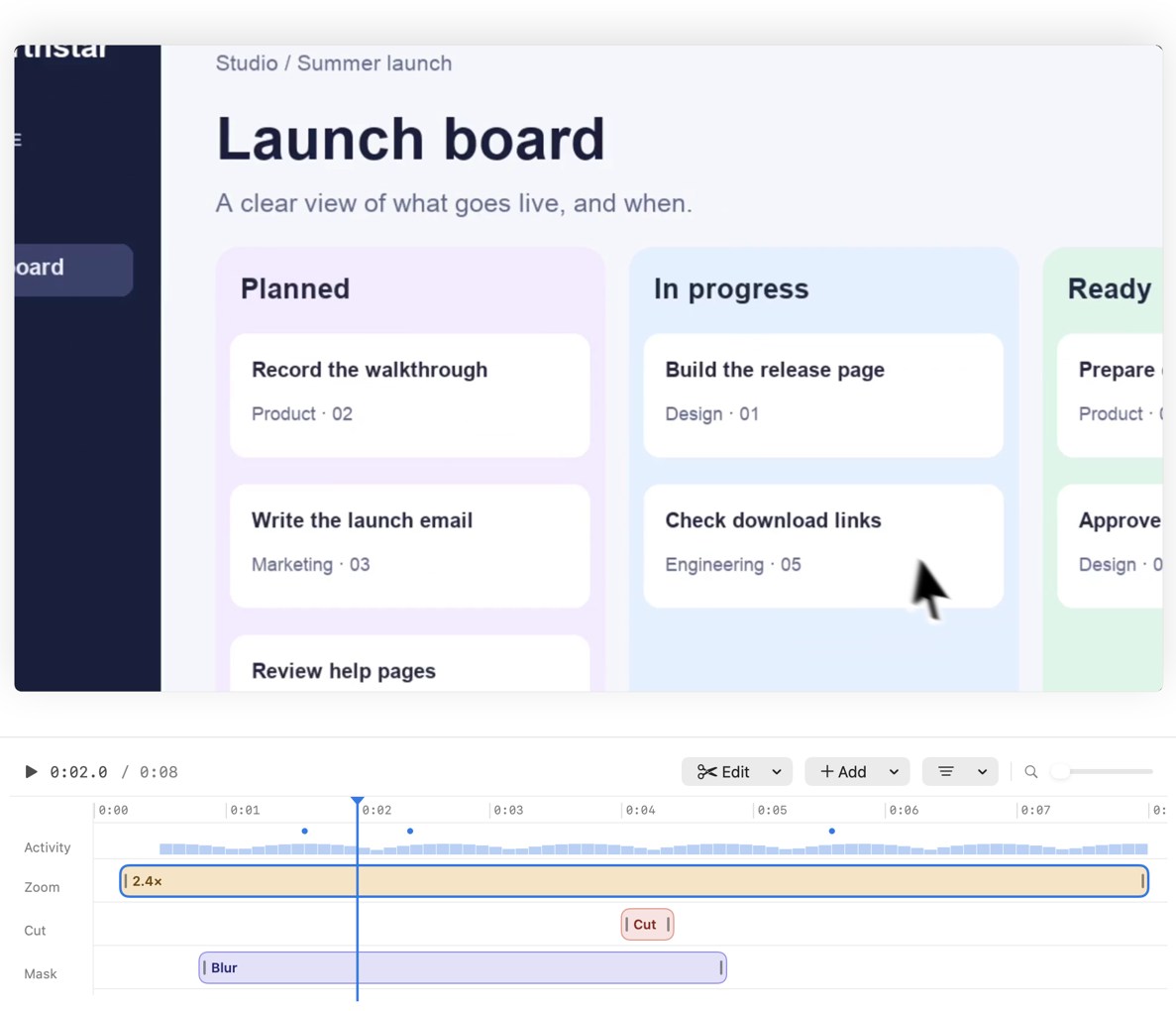
The best screen recorder for Mac depends on the job. For a quick free clip, use the Screenshot toolbar built into macOS. For streaming, use OBS Studio. For async video with share links, use Loom or Cap. For polished product demos with automatic zoom, Screen Studio is the established pick if a subscription suits you, and MacMuse Recorder gives you editable auto zoom for a one-time price on Apple silicon Macs.
We make MacMuse Recorder, so weigh our view with that in mind. This guide says plainly where another app is the better choice, and it links to each vendor’s own page so you can check.
Which Mac screen recorder should you use?
Start with what you’re making, not with a feature list.
- A quick clip, free: the macOS Screenshot toolbar (Shift-Command-5). Nothing to install.
- Streaming, or free recording with many sources: OBS Studio. Free and open source.
- A video message you share as a link: Loom or Cap. Viewers watch in a browser and can comment.
- A polished product demo or tutorial: Screen Studio on a subscription, or MacMuse Recorder for $19.99 once.
- Screenshots plus the odd recording: CleanShot X.
- Long tutorials or courses with a full editor: ScreenFlow or Camtasia.
Mac screen recorders compared
Prices and features checked on November 10, 2026. “Not listed” means the vendor’s own pages don’t say, so we don’t either.
| App | Price model and current price | Best for | System audio | Camera | Auto zoom | Share links |
|---|---|---|---|---|---|---|
| macOS Screenshot toolbar | Free, built in | Quick clips | Not listed (microphone only) | Not listed | No | No, saves a .mov file |
| OBS Studio | Free, open source | Streaming, multi-source scenes | Yes (OBS 30 on macOS 13+) | Yes | Not listed | No |
| Loom | Free Starter (25 videos, 5 min each); Business $18 per user/month | Async video messages | Yes, desktop app | Yes | Not listed | Yes |
| Cap | Free for personal use; Desktop License $58 once; Pro $12 per user/month | Open-source share links | Yes | Yes | Not listed (zoom editing in Studio Mode) | Yes (25 a month on Free and Desktop, unlimited on Pro) |
| Screen Studio | Subscription: $29/month, or $9/month billed yearly | The most polished auto-zoom demos | Yes | Yes | Yes | Yes (up to 30 min) |
| CleanShot X | $35 once with 1 year of updates; Pro $10 per user/month billed yearly | Screenshots plus short recordings | Yes | Yes | Smart zooms you add in the editor | Yes |
| MacMuse Recorder | One-time: $19.99 for 1 Mac | Demos with editable auto zoom, no subscription | Yes (optional) | Yes | Yes, editable on the timeline | No, exports files |
What’s the best free screen recorder for Mac?
For most people, the free answer is already on their Mac. Press Shift-Command-5 to open the Screenshot toolbar. You can record the entire screen, one window, or a part of the screen you drag out. Under Options you pick where it saves, a timer, a microphone, and whether to show the pointer. Click Record, then click the Stop button in the menu bar. The file is a .mov. Apple’s guide covers each option.
QuickTime Player still works too. File > New Screen Recording opens the same Screenshot tools, as Apple’s QuickTime guide shows. So there is no reason to pick one over the other.
The built-in tool has limits. Apple’s guide lists a microphone as the only audio option, so don’t count on it for your Mac’s own sound. It also lists no camera overlay, zoom or editor.
When you outgrow it, the free options split by job:
- OBS Studio is free and open source. It records and streams, and it can mix screens, windows, webcams, images and text into scenes. It needs macOS 13 or newer and has separate downloads for Intel and Apple silicon.
- Cap has a free plan with Studio Mode, a full editor and 4K export. It is for personal use only, and free share links are capped at 25 a month, up to 5 minutes each. Commercial use needs the Desktop License.
- Loom Starter is free for 25 videos of up to 5 minutes each, at up to 720p. Starter users can’t download their videos as files, per Loom’s help center.
- Camtasia has a free download of the full editor, but exports carry a watermark until you pay.
If you searched “screen recording mac free” and only need a clip with your voice, the Screenshot toolbar is the right answer. If you need your Mac’s sound too, use OBS. We cover that setup in how to screen record on Mac with sound.
Which Mac screen recorder is best for product demos and tutorials?
A demo needs viewers to see the control you click. That’s why automatic zoom matters. The app watches where you click and zooms in so a small button is readable on a phone or a laptop.
Screen Studio is the most polished choice here. It zooms in on the moments that matter based on where you clicked, and it supports manual zooms too. It has camera layouts with background removal, records your Mac’s sound, and exports MP4 up to 4K at 60 fps or GIF. Share links are included, at 1080p for videos up to 30 minutes. It costs $29 a month, or $9 a month billed yearly. One-time licenses are no longer sold to new buyers. Pick it if you make demos every week and want hosted links in the same app.
MacMuse Recorder is our app. It records a display, a window, an area or your camera, with optional microphone and system audio. It suggests zooms from your clicks, and every zoom is a block on the timeline you can move, retime, change the pace of, or delete. It also trims pauses, adds captions transcribed on your Mac, shows shortcut keys, blurs private parts of the screen, and lays out the camera as a bubble, split, floating or full screen. You export MP4, GIF or ProRes 4444 with transparency, in 16:9, 4:3, 1:1, 3:4 or 9:16 from the same recording. It costs $19.99 once for one Mac and needs Apple silicon and macOS 15 or later. There’s no free trial and no share links. Pick it if you want auto zoom you can edit and don’t want a subscription.
CleanShot X is first a screenshot tool, and a good one. It also records MP4 or GIF with computer audio, microphone and camera, and its editor has smart zooms that follow your cursor. You get cloud links too. Basic costs $35 once with a year of updates and 1 GB of cloud storage; renewing updates is $19 a year. Pick it if most of what you capture is screenshots.
ScreenFlow is a full Mac video editor with recording built in. It records screen, camera and microphone at once, and it can record an iPhone or iPad screen for app demos. None of the other apps here list that. Telestream sells it for $199. Pick it for longer tutorials where you want a classic multi-track editor.
Camtasia runs on Mac and Windows (macOS 14 or later) with nearly identical features. It’s now sold as a yearly subscription in three individual plans: Essentials, Create and Pro. Pick it if your team works across both platforms or builds training courses.
For a step-by-step on planning and recording a walkthrough, see how to record a product demo on a Mac. If you’re comparing Screen Studio against cheaper options in more depth, read Screen Studio alternatives for Mac.
What should you use for async video and share links?
If the video is a message to a coworker or a customer, you want a link, not a file. Hosted recorders put the video online for you and give you a link.
Loom is the default here. You record screen and camera, share a link, and viewers can leave comments and emoji reactions. You also get viewer insights and transcripts. The desktop app can record your Mac’s system audio once you turn on “Include system audio” in its recording settings. Business costs $18 per user per month and removes the 5-minute limit.
Cap is the open-source option. Instant Mode uploads while you record and gives you a shareable link when you stop. Studio Mode saves a local project you can edit and export as a file, or share as a link later. Signed-in viewers can leave timestamped comments. The free and $58 Desktop License tiers include 25 share links a month. Cap Pro adds unlimited links, cloud storage and viewer analytics. It’s also on Windows and Linux, and you can self-host it.
MacMuse Recorder is the wrong pick for this job. It has no cloud hosting, share links, comments or viewer analytics. You export an MP4 and share it wherever you already share files. We go through the trade-off in Loom alternatives for Mac.
Is OBS the best screen recorder for Mac streaming?
Yes. If you stream to Twitch, YouTube or another platform, OBS Studio is the answer, and it’s free. It works with the major streaming platforms, uses hotkeys to start and stop streams or recordings, and lets you build scenes from screens, windows, webcams, capture cards and browser sources.
On macOS 13 or later, OBS 30 has a macOS Audio Capture source that records all desktop audio or a single app. The OBS desktop audio guide has the steps. On older macOS versions you need a third-party audio tool.
Plenty of people search “obs alternative mac” because OBS feels like too much setup for a five-minute tutorial. That’s fair. Scenes and sources are built for live production, and OBS has no built-in editor. If you don’t stream, a recorder that pairs capture with editing will save you time:
- For share links, use Loom or Cap.
- For edited demos with zoom, use Screen Studio or MacMuse Recorder.
- For a quick clip, use the Screenshot toolbar.
How do you pick the best screen recorder for Mac?
Ask three questions.
- Where will people watch it? A link in Slack or email points to Loom or Cap. A file on your site, in a help center or on YouTube points to a local recorder like Screen Studio, CleanShot X or Recorder.
- Do viewers need to see small controls? Then you want automatic zoom. Screen Studio and Recorder suggest zooms from your clicks. CleanShot X lets you add zooms that follow the cursor.
- How do you want to pay? Free covers quick clips and streaming. A subscription buys hosting and constant updates. A one-time price suits people who record often but don’t need hosting.
Also check your Mac. MacMuse Recorder needs Apple silicon and macOS 15. Screen Studio recommends macOS 13.1 or later and is built for Apple silicon. OBS needs macOS 13. Camtasia needs macOS 14.
FAQ
Does Mac have a built-in screen recorder?
Yes. Press Shift-Command-5 to open the Screenshot toolbar, then choose the entire screen, a window or a selected area, and click Record. QuickTime Player’s File > New Screen Recording opens the same tools. Recordings save as .mov files.
What is the best free screen recorder for Mac?
For quick clips, the built-in Screenshot toolbar. For free recording with system audio, webcam and scenes, or for streaming, OBS Studio. Cap’s free plan is good for personal share links, and Loom’s free Starter plan allows 25 videos of up to 5 minutes.
Which Mac screen recorder has automatic zoom?
Screen Studio zooms in on your clicks automatically, on a subscription. MacMuse Recorder suggests zooms from your clicks and lets you move, retime or delete each one, for a one-time $19.99. CleanShot X has smart zooms you add in its editor.
Is there a good OBS alternative for Mac?
It depends on why you’re leaving OBS. For streaming, OBS is still the best free option. For recording tutorials without building scenes, try Screen Studio or MacMuse Recorder for edited demos, or Loom or Cap for share links.
Can I buy a Mac screen recorder without a subscription?
Yes. MacMuse Recorder is $19.99 once for one Mac. Cap’s Desktop License is $58 once. CleanShot X Basic is $35 once with a year of updates. ScreenFlow is $199 on Telestream’s store. Screen Studio no longer sells one-time licenses to new buyers.
Try MacMuse Recorder
If you make demos or tutorials and want auto zoom you can edit, without a monthly bill, look at MacMuse Recorder for Apple silicon Macs. It’s $19.99 once for one Mac, your recordings stay on your Mac, and you export a finished MP4, GIF or ProRes file. If you need share links and viewer comments instead, Loom or Cap will serve you better.
Get new MacMuse apps first
A short email when a new app ships or an app gets a big update. That’s it.